Current ThreatQ Version Filter
Agent Toolbar
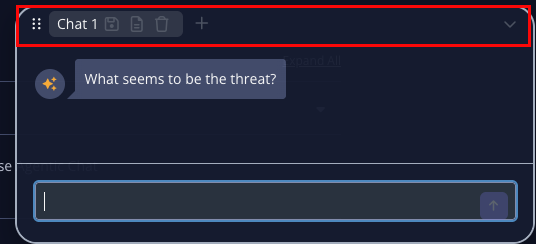
The Agent Toolbar provides quick access to key functions that enhance how users interact with the Threat Research Agent. It enables users to manage chat sessions, generate and download reports, organize multiple conversations, and control the agent interface. This section outlines each toolbar option and its functionality, helping users efficiently navigate and utilize the agent during their workflow.
| Icon | Function | Description |
|---|---|---|
 |
Move Agent Widget | Click on the move icon to move the agent on your screen. The agent will automatically snap to the closest corner. |
 |
Download Chat | This function downloads the chat to your local machine in markdown format. |
 |
Generate Report | This function leverages ThreatQ to generate a PDF report of the chat conversation. See the Generating Chat Reports topic for details. |
 |
Delete/Clear Report | The function of this button will differ based on the number of chat tabs opened. If there is only one chat tab, the button will clear the chat. If there are more than one chat tabs, the button will close the current tab open.
The agent does not save chat history at the end of a session or when closing a chat tab. |
 |
Open New Chat Tab | This button opens a new chat tab within the agent. You can have up to five different chat tabs open at one time. |
 |
Minimize Agent Window | This button will minimize the agent. |