Enable and Configure Agent
Default ThreatQ Role: Administrative or Maintenance
Custom Role - Action Permissions: Administrative Functions - Edit System Configurations
This topic provides step-by-step instructions for configuring and enabling the Threat Research Agent within the ThreatQ platform. This guide walks you through selecting an LLM provider, defining required settings, and activating the agent, as well as enabling ThreatQ operations as tools so the agent can effectively query, enrich, and analyze data within your environment.
By default, no data is shared with any LLM provider; data is only transmitted after the agent is properly configured and enabled.
Configuring and Enabling the Agent
- Click on the Settings gear icon and select System Configurations.
The System Configurations page will load. - Click on AI tab to open the AI configuration page.
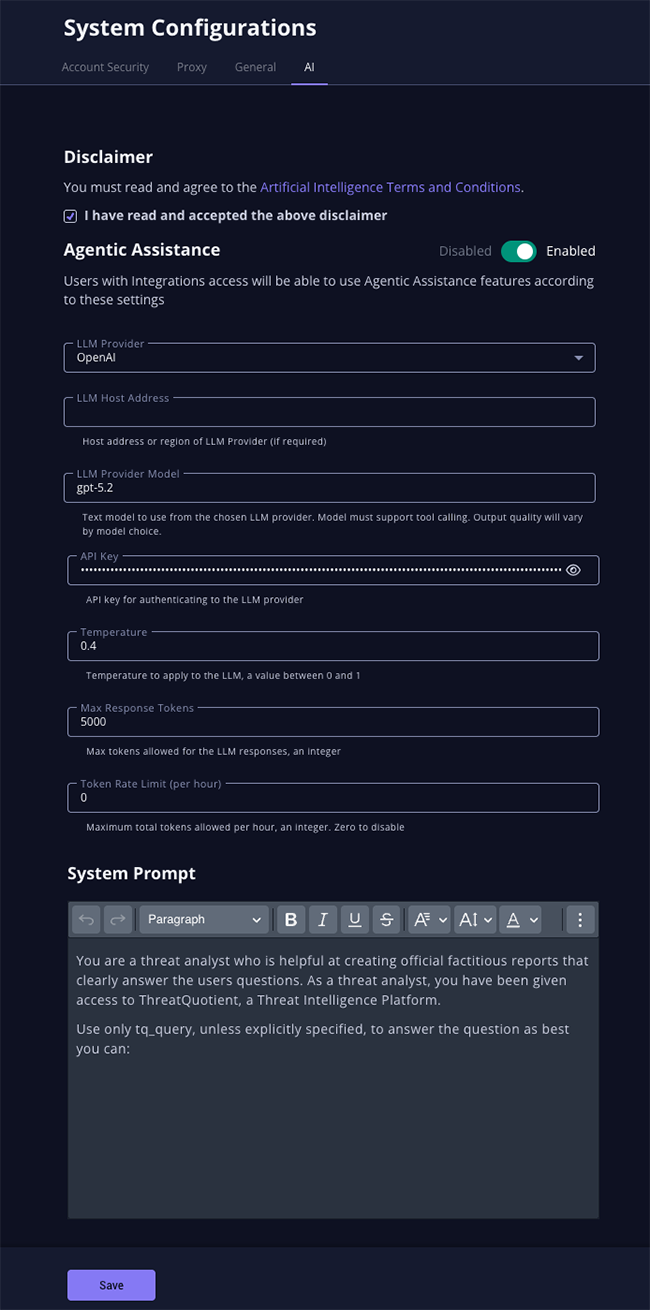
- Review and accept the Artificial Intelligence Terms and Conditions.
- Complete the following parameters:
Parameter Description LLM Provider Select your LLM Provider. Options include: - OpenAI
- Anthropic
- Gemini
- Ollama
LLM Host Enter the LLM host address if required by the LLM provider. Only Ollama requires this parameter at the time of this publication.
LLM Provider Model Enter the model to use for the selected provider. An example for OpenAI would be gpt-5.2.The selected model must support tool-calling and the quality of the output will depend on the capabilities of the chosen model.
API Key Enter the API Key for the LLM provider. The API key is configured at the system level and is shared across all users.
Temperature Enter a temperature setting, between 0 and 1, to set the randomness, creativity, and predictability of text generated. Lower values will produce more consistent and deterministic responses while higher values generate more varied and creative results. The ThreatQuotient team recommends starting with .4and adjusting based on your requirements.Max Response Tokens Enter the max number of tokens the LLM can use in its responses. Token Rate Limit (per hour) Enter the maximum total tokens that can be used per hour. Enter 0 to disable the rate limit. System Prompt This parameter contains the instructions to the agent on how to operate. A recommended prompt is already populated in the parameter by default. You can edit this prompt as needed by your organization. You are a threat analyst who is helpful at creating official factitious reports that clearly answer the users questions. As a threat analyst, you have been given access to ThreatQuotient, a Threat Intelligence Platform. Use only tq_query, unless explicitly specified, to answer the question as best you can.
- Click on the Save button and then click on the Enable toggle switch to enable the Threat Research Agent.
- The agent will now be enabled and connected to your selected LLM. Proceed with enabling tools for the agent to utilize.
Enabling Tools
The Threat Research Agent uses ThreatQ operations as tools to enrich and curate data. The agent analyzes the selected object and autonomously determines the appropriate tool to use when additional information or enrichment is requested. The operation must be fully configured (API keys, settings etc.) and enabled in ThreatQ.
- Click on the Integrations menu heading and select Operations.
- Click on the tile card for the operation to be included as an agent tool to load its details page.
- Check the Enable this operation for use by your ThreatQ MCP server configuration option.
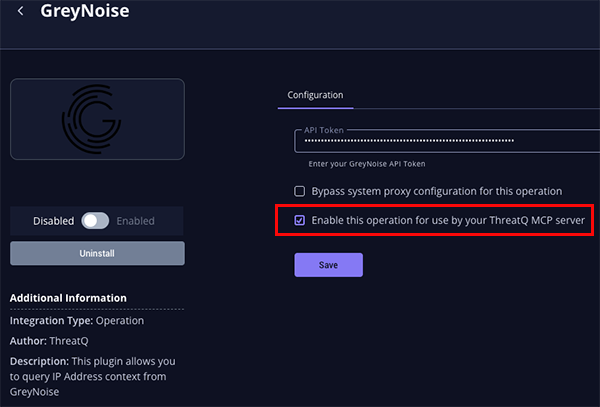
- The operation will now be accessible as a tool by the agent.