AI-Assisted Report Templates
Introduced in ThreatQ v6.20.0, AI-Assisted Report Templates enable you to create standardized, reusable report structures for the Threat Research Agent. Templates define the sections and prompts that guide the AI when generating reports, helping ensure reports are consistent, comprehensive, and tailored to your organization's reporting requirements.
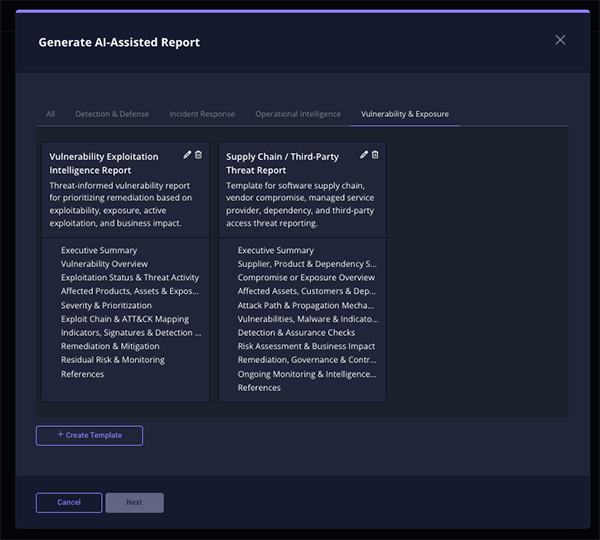
Report templates are organized into user-defined categories, making it easy to manage templates for different use cases, such as malware analysis, threat actor profiles, vulnerability assessments, or executive summaries. Users can create, organize, and delete categories as needed.
When generating a report, select a report template as the starting point. Before submitting the report for generation, you can customize the template by adding new sections, removing sections that are not needed, or rearranging the order of existing sections. This flexibility allows you to adapt reusable templates to meet the requirements of a specific investigation while maintaining a consistent reporting framework.
After the report is generated, you can review the AI-generated content and choose one of the following actions:
- Create a ThreatQ Report to save the report as a Report object within the Threat Library.
- Export as PDF to generate a portable document that can be shared outside the ThreatQ platform.
By providing reusable report structures and allowing last-minute customization, Chat Report Templates help standardize AI-assisted reporting, reduce the time required to produce detailed intelligence reports, and enable analysts to consistently generate high-quality documentation across investigations.
Default Categories and Reports
The following report template categories and templates are included with the ThreatQ platform by default. You can modify or delete seeded report templates to meet your organization's requirements. You can remove a category by deleting all the reports within it.
The ThreatQ Default report template cannot be deleted.
Deleting any other category or report template is permanent and cannot be undone. If a seeded category or report template is deleted, it must be recreated manually.
| Category | Report | Description |
|---|---|---|
| Detection & Defense | Threat Hunting Findings Report | Template for documenting a hypothesis-driven hunt, telemetry coverage, findings, and detection engineering follow-up. |
| Detection & Defense | Detection Engineering/Coverage Report | Template for documenting detection logic, ATT&CK coverage, validation, tuning, response mapping, and engineering backlog. |
| Incident Response | Ransomware Incident / Campaign Report | Template for ransomware intrusions, extortion campaigns, and ransomware readiness findings. |
| Incident Response | Cloud & Identity Threat Report | Template for cloud control plane, SaaS, identity provider, and credential-centric threat analysis. |
| Operational Intelligence | ThreatQ Default | Standard threat intelligence summary used by ThreatQ agentic assistance. Optimized for mixed executive and analyst audiences. |
| Operational Intelligence | MITRE ATT&CK Campaign Report | Structured analysis of a threat campaign mapped to MITRE ATT&CK, with explicit evidence, versioning, confidence, and defensive recommendations. |
| Operational Intelligence | MITRE ATT&CK Incident Report | Post-incident report documenting an intrusion through the MITRE ATT&CK lens and incident response lifecycle. |
| Operational Intelligence | MITRE CTI Threat Actor Profile | Deep-dive profile of a threat actor or intrusion set using CTI conventions, ATT&CK mapping, and explicit confidence language. |
| Operational Intelligence | Malware Analysis Report | Static and dynamic malware analysis template connecting sample behavior, capabilities, indicators, ATT&CK techniques, and defensive actions. |
| Operational Intelligence | Phishing / BEC Campaign Report | Template for analyzing phishing, business email compromise, credential theft, and email-borne malware campaigns. |
| Operational Intelligence | Tactical IOC Enrichment Report | Fast-turn report for validating, enriching, contextualizing, and operationalizing indicators and observables. |
| Strategic Intelligence | Strategic Sector Threat Landscape Report | Executive and board-oriented threat landscape report for a sector, geography, technology stack, or business line. |
| Vulnerability & Exposure |
Vulnerability Exploitation Intelligence Report |
Threat-informed vulnerability report for prioritizing remediation based on exploitability, exposure, active exploitation, and business impact. |
| Vulnerability & Exposure | Supply Chain / Third-Party Threat Report | Template for software supply chain, vendor compromise, managed service provider, dependency, and third-party access threat reporting. |
Sections
Report Sections are the reusable building blocks that define the content of an AI-assisted report. Each section contains a prompt that instructs the Threat Research Agent what information to generate for a specific portion of the report, such as an executive summary, threat actor analysis, malware behavior, indicators of compromise, or recommended mitigations.
Unlike report templates, which define the overall structure of a report, sections define the individual content areas within that structure. Because sections are reusable, a section created once can be used across multiple report templates, ensuring consistent AI instructions while eliminating the need to recreate commonly used report content.
When a report is generated, the AI processes each section independently using its associated prompt and assembles the results into a complete report. Multiple sections can be combined in any order to create reports tailored to different use cases. If a section is updated, the changes are automatically reflected the next time it is used in any report template, allowing organizations to maintain standardized reporting practices while managing common content from a single location.
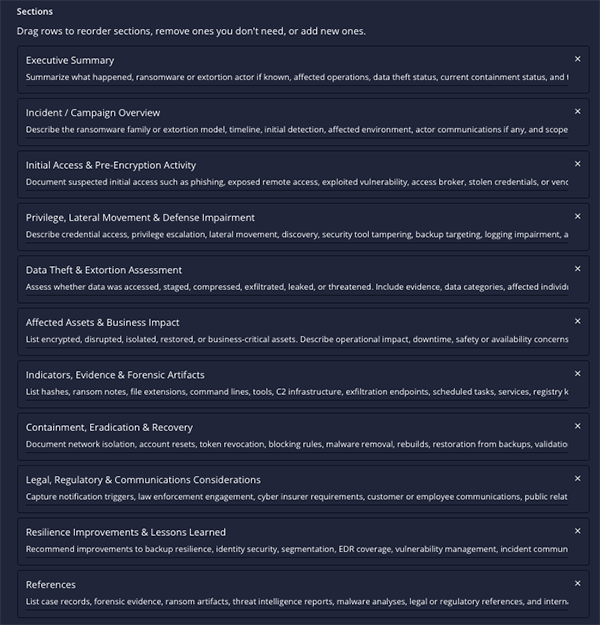
This modular approach enables organizations to standardize report content, maintain consistency across investigations, and quickly build new report templates from a library of reusable sections.
Creating a New Report Template
You can create a new chat report template from the Generate AI-Assisted Report modal. This can be access by clicking on the report icon in the agent chat or by clicking on the Full option for the Insights button on an object's details page.
From the Generate AI-Assisted Report Modal:
- Click on the + Create Template button.
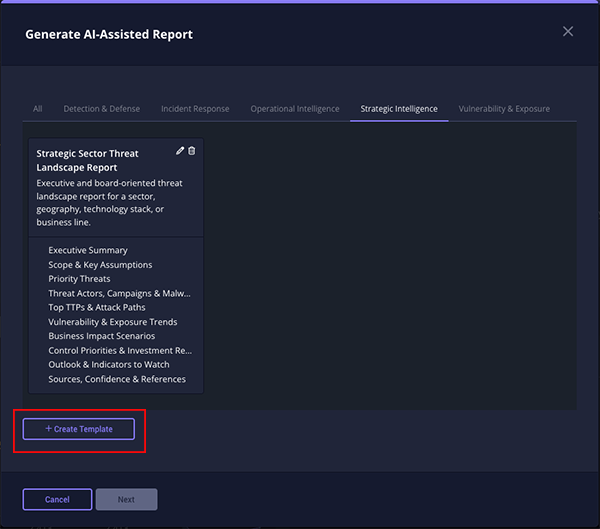
The new template form will load.
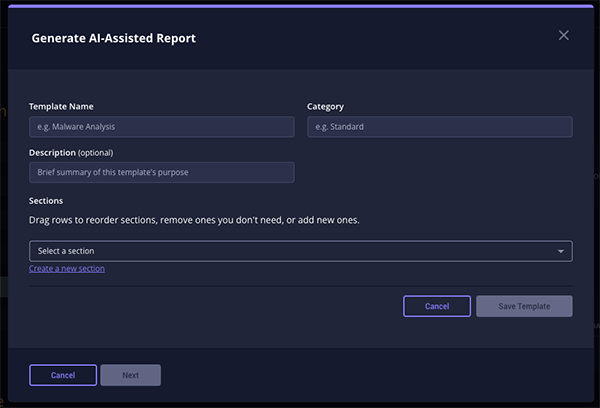
- Complete the following fields:
Field Description Template Name Enter the name for the report template. Category Enter the category that the template will be listed under. Categories are listed as tabs on the Generate AI-Assisted Report modal. If the category does not exist, it will be created when you finish the report template setup. Description Optional - enter a description about the report template that will help users understand what the template's purpose. - Select the report sections to include using the Select a Section dropdown. Each section serves as an instruction that guides the AI when generating the report. The dropdown lists all existing sections available across report templates, allowing you to reuse standardized content.
You can also create new sections for the report using the Create a New Section option. Once saved, new sections will be available for use with all reports.
- Click on Save Template.
- The report will now be available under the category you entered in step 2.
Editing / Deleting a AI-Assisted Report Template
You can edit or delete a chat report template from the Generate AI-Assisted Report modal.
Deleting a report template is permanent and cannot be undone.
- Open the Generate AI-Assisted Report modal by clicking on the report icon in the agent chat or by clicking on the Full option for the Insights button on an object's details page.
- Click on edit or delete icon, located to the top-right of the individual report's card.
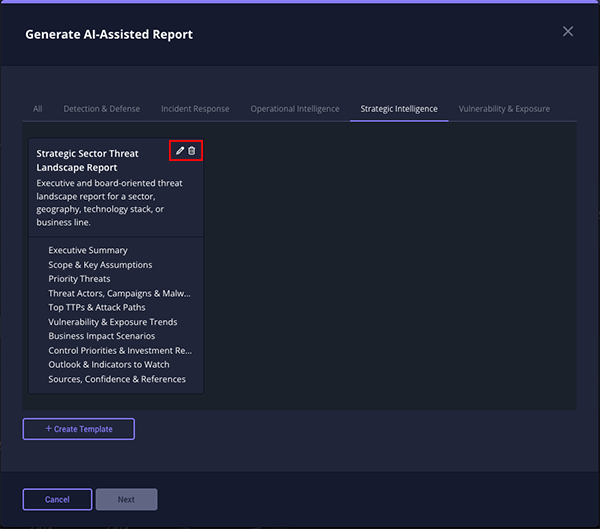
- If clicked on the delete icon, you will prompted to confirm deletion.
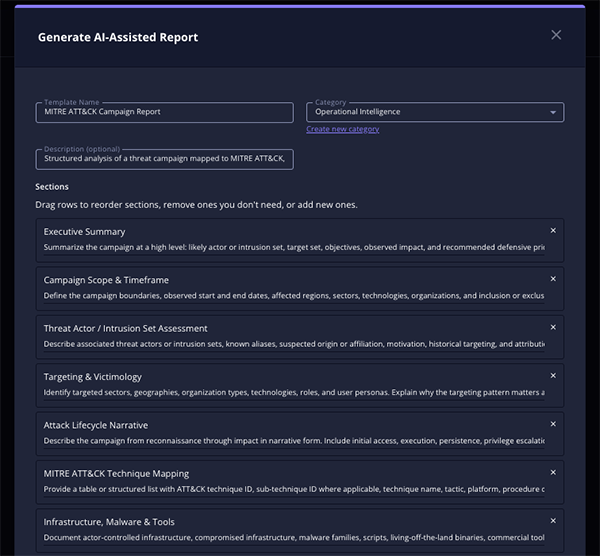
- If you clicked on the edit icon, the report template builder will load. You can now:
- Edit the report template name.
- Change or create a new category for it.
- Update the report template's description.
- Reorder, add (new and existing), and delete report sections.
- Click on Save Changes at the bottom of the form once you have completed your updates.