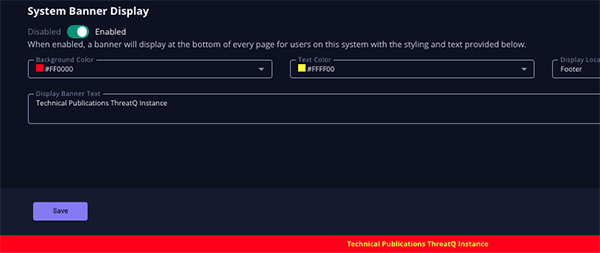
System Banner Display Settings
Default ThreatQ Role: Administrative or Maintenance
Custom Role - Action Permissions: Administrative Functions - Edit System Configurations
The System Banner Display Settings feature enables administrators to configure customizable banner messages within the ThreatQ platform to clearly identify the classification, purpose, or operational role of a ThreatQ instance. Banner messaging can be displayed in configurable header and/or footer locations, providing users with immediate visual awareness of the environment they are currently accessing.
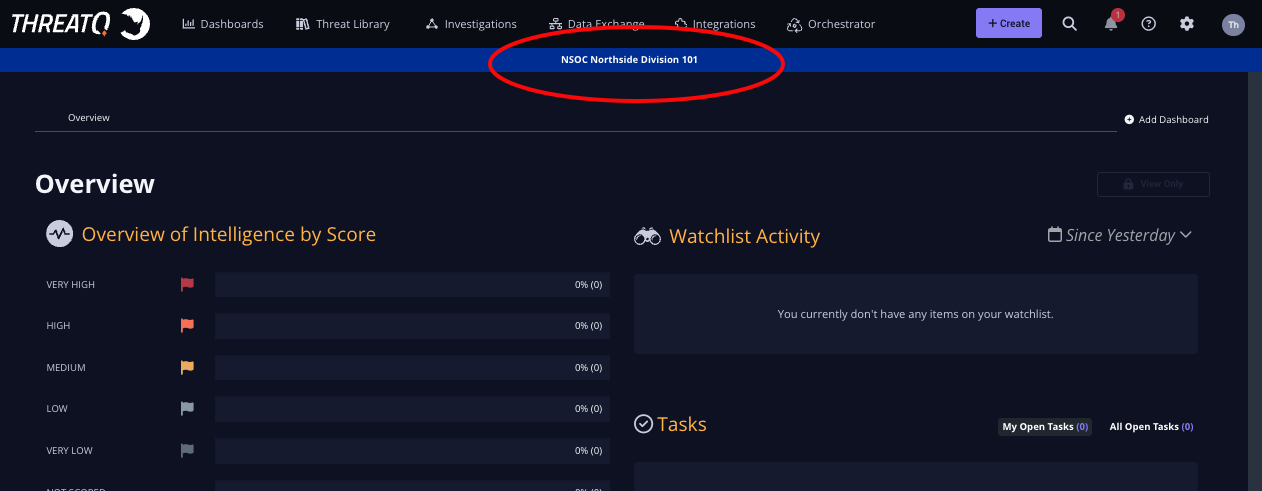
This feature is especially valuable for organizations managing multiple ThreatQ environments, such as development, testing, staging, or production systems, helping reduce user confusion and supporting safer operational workflows across platform instances. In addition to operational awareness, the feature also supports organizational branding, compliance, and system marking requirements through flexible display customization options.
System Banner Display Settings are located under the General tab and support plain-text banner messages up to 300 characters in length. Banner text is center-aligned by default. Administrators can customize the banner using four background color options, three text font color options, and two display location settings.
- Navigate to Settings
 > System Configurations.
 - Click the General tab.
- Scroll down the page to the System Banner Display section.
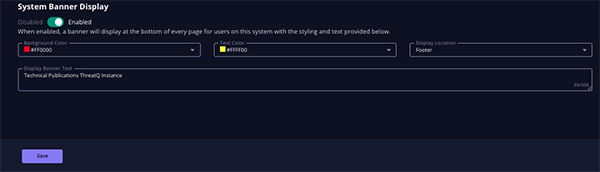
- Select a background color from the Background Color dropdown provided. Hex color options include:
- blue #0033A0
- grey #767676
- black #000000
- red #FF0000
- Select your color of your banner text from the Text Color dropdown provided. Hex color options include:
- white #FFFFFF
- black #000000
- yellow #FFFF00
- Select a display location for the banner from the Display Location dropdown. Options include:
- header
- footer
- Enter your banner message in the Display Banner Text field. This plaintext field supports 300 characters and will default to a centered position in the banner.
Text entered in this field will appear in a single line. Any returns and line breaks added in the text box will be ignored.
- Click on the Save button to save your changes.
- Click on the Enable/Disable toggle switch to enable the banner.
The banner will now be displayed for all platform users.