VMRay UniqueSignal TAXII Feed
The web format of this guide reflects the most current release. Guides for older iterations are available in PDF format.
Integration Details
ThreatQuotient provides the following details for this integration:
| Guide Version | 1.0.0 |
| TAXII Server Version | 2.1.0 |
| Compatible with ThreatQ Versions | >= 5.6.0 |
| Support Tier | Developer Supported |
| Developer Contact | support@vmray.com |
Introduction
The VMRay UniqueSignal TAXII Feed delivers high-confidence, noise-free threat intelligence derived from evasion-resistant sandbox analysis and exclusive sample collection . Fully compliant with TAXII 2.1, it provides structured intelligence—such as IOCs, malware insights, and MITRE-mapped TTPs for seamless ingestion across modern security platforms. By eliminating false positives and outdated indicators, the feed equips security teams with precise, context-rich data to accelerate detection, enrichment, and response.
This feed is a TAXII feed and does not require installation files from the ThreatQ Marketplace.
Prerequisites
You will need the following to use the TAXII feed:
- Your VMRay UniqueSignal username and password to set up this TAXII feed in ThreatQ.
Setting up the TAXII Feed
ThreatQuotient does not issue API keys for third-party vendors. Contact the specific vendor to obtain API keys and other integration-related credentials.
To set up and configure the TAXII feed:
- Navigate to your integrations management page in ThreatQ.
- Click on the Add New Integration button and select the Add New TAXII Feed option.
- Enter the following feed settings:
Parameter Description What would you like to name this feed Enter the name of the feed. This is the name that the ThreatQ UI will display. How ofter would you like to pull new data from this feed Select the frequency in which the feed it pulled. Options include: - Every Hour
- Every6 Hours
- Every Day
- Every 2 Days
- Every 14 Days
- Every 30 Days
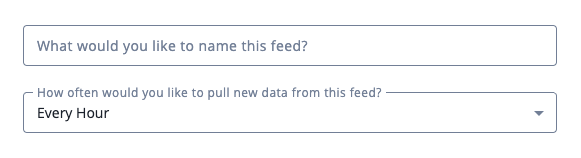
- Enter the TAXII Connection Settings:
Parameter Description TAXII Server Version Select the 2.1 option from the dropdown menu. Discovery URL Enter the VMRay UniqueSignal URL: https://cti-taxii.vmray.com/taxii2/.Poll URL Optional - enter a URL for specific endpoint on the TAXII server to poll for data. If this field is left blank, the TAXII client will determine the appropriate path via the Collections Service. Collection Name/Title Enter the VMRay UniqueSignal collection name to pull. 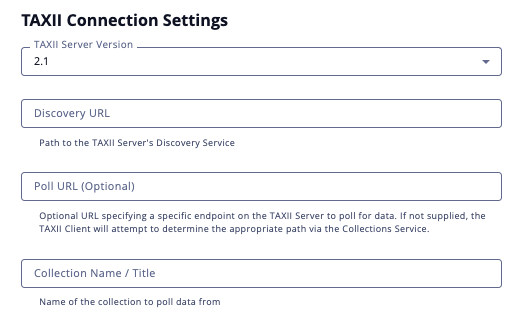
- Leave the Disable Proxies setting unchecked.
- Enter your Silent Push Login Credentials:
Parameter Description Username Enter your VMRay UniqueSignal username. Password Enter your VMRay UniqueSignal password. 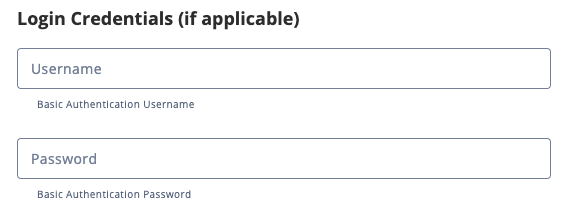
- Leave the Certificate/Keys fields blank.
- Leave the Verify SSL field selected and paste a Host Bundle (if applicable).
- Click on Add TAXII Feed.
The TAXII feed will now appear as an integration tile card on your My Integrations page using the display name you supplied in step 3. You can also click on the Category dropdown and select STIX/TAXII to filter your view.
- Click on the TAXII feed's tile card to open up its details page.
- Click on the Enable toggle switch, located above the Additional Information section, to enable the TAXII feed.
Average Feed Run
Object counts and Feed runtime are supplied as generalities only - objects returned by a provider can differ based on credential configurations and Feed runtime may vary based on system resources and load.
Query Range 1 Hour
| Metric | Result |
|---|---|
| Run Time | 19 minutes |
| Indicator | 3,191 |
| Indicator Attributes | 60,2020 |
| Reports | 221 |
| Report Attributes | 6,205 |
| Signature | 1,038 |
| Signature Attributes | 17,220 |
Change Log
- Version 1.0.0
- Initial release
PDF Guides
| Document | TAXII Version | ThreatQ Version |
|---|---|---|
| VMRay UniqueSignal TAXII Feed Guide v1.0.0 | 2.1.0 | 5.6.0 or Greater |