iZoologic Operation
The web format of this guide reflects the most current release. Guides for older iterations are available in PDF format.
Integration Details
ThreatQuotient provides the following details for this integration:
| Current Integration Version | 1.0.0 |
| Compatible with ThreatQ Versions | >= 5.9.0 |
| Support Tier | ThreatQ Supported |
Introduction
The iZoologic Operation enables analysts to take action on individual iZoologic cases directly from within the ThreatQ platform, streamlining case management and response workflows. By integrating with iZOOlabs, a global security laboratory and operations center specializing in cybercrime mitigation, this operation allows users to update and manage cases efficiently while maintaining visibility and coordination between ThreatQ and iZoologic systems.
The integration provides the following operation actions:
- Send Case Message - sends a communication message to the iZoologic team for the specified case.
- Approve Case Takedown - approves incident cases for takedown.
- Mark as Reviewed - marks a case as reviewed.
- Move Case - moves a case from one case type to another
The operation is compatible with the following object types:
- Events
- Identities
Prerequisites
The following is required to run the integration:
- Your iZoologic API Hostname.
- Your iZoologic API Key - located under the Account > Profile > API Key.
- Your iZoologic Secret Key - located under the Account > Profile > API Key.
Installation
Perform the following steps to install the integration:
The same steps can be used to upgrade the integration to a new version.
- Log into https://marketplace.threatq.com/.
- Locate and download the integration file.
- Navigate to the integrations management page on your ThreatQ instance.
- Click on the Add New Integration button.
- Upload the integration file using one of the following methods:
- Drag and drop the file into the dialog box
- Select Click to Browse to locate the integration file on your local machine
ThreatQ will inform you if the operation already exists on the platform and will require user confirmation before proceeding. ThreatQ will also inform you if the new version of the operation contains changes to the user configuration. The new user configurations will overwrite the existing ones for the operation and will require user confirmation before proceeding.
The operation is now installed and will be displayed in the ThreatQ UI. You will still need to configure and then enable the operation.
Configuration
ThreatQuotient does not issue API keys for third-party vendors. Contact the specific vendor to obtain API keys and other integration-related credentials.
To configure the integration:
- Navigate to your integrations management page in ThreatQ.
- Select the Operation option from the Type dropdown (optional).
- Click on the integration entry to open its details page.
- Enter the following parameters under the Configuration tab:
Parameter Description Hostname Enter the iZoologic API Hostname. API Key Enter your iZoologic API Key. Secret Key Enter your iZoologic Secret Key. Verify SSL Enable this parameter if the integration should validate the host-provided SSL certificate.
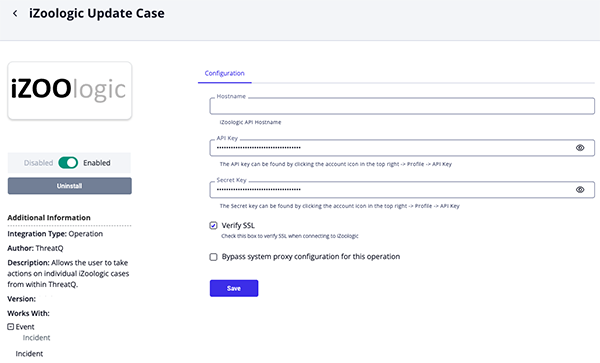
- Review any additional settings, make any changes if needed, and click on Save.
- Click on the toggle switch, located above the Additional Information section, to enable it.
Actions
The operation provides the following actions:
| Action | Description | Object Type | Object Subtype |
|---|---|---|---|
| Send Case Message | Sends a communication message to the iZoologic team for the specified case. | Incident, Event | N/A |
| Approve Case Takedown | Approve incident cases for takedown. Changes status from "Pending" to "Open" and triggers email notifications. | Incident, Event | N/A |
| Mark As Reviewed | Mark a case as reviewed by updating its review status and logging the action. | Incident, Event | N/A |
| Move Case | Move a case from one case type to another. | Incident, Event | N/A |
Send Case Message
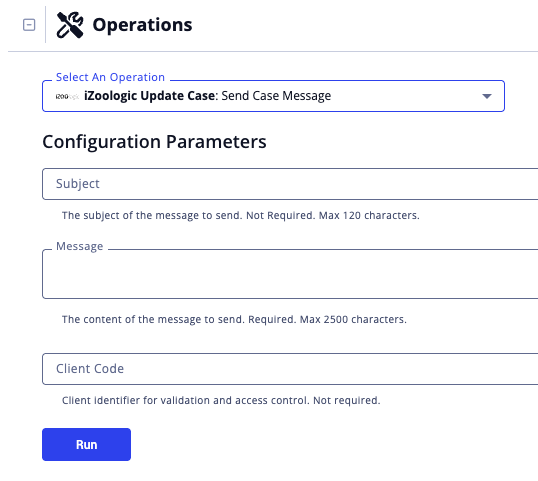
The Send Case Message operation action sends a communication message to the iZoologic team for the specified case. Messages are sent via email to the iZOOlabs support team and automatically logged in the case communication history for tracking and follow-up.
POST https://client-api.izoolabs.com/api/ThreatManagement/SendCaseMessage?CaseID=CASE123456&Subject=Urgent%20Follow-up&Message=Please%20provide%20status%20update%20on%20this%20phishing%20case&ClientCode=ABC
Sample Response:
{
  "result": "Message sent successfully",
  "success": true,
  "message": null,
  "errorCode": null
}
Run Configuration Options
These configuration options are set after selecting the action to run against an object and are not set from the operation's configuration screen.
The following configuration option is available after selecting the action:
| Run Option | Description |
|---|---|
| Subject | Enter the subject of the message to send. The character max for this option is 120. |
| Message | Enter the content of the message to send. The character max for this option is 2,500.
This is required to run the operation action. |
| Client Code | Enter the client identifier for validation and access control. |
Approve Case Takedown
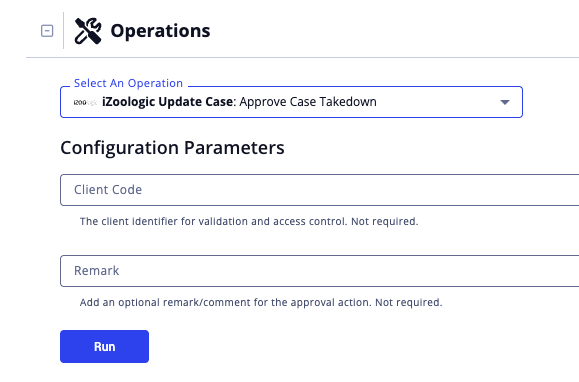
The Approve Case Takedown operation action approves incident cases for takedown, changing the status from Pending to Open, and triggering email notifications.
POST https://client-api.izoolabs.com/api/ThreatManagement/ApproveCaseTakedown
Sample Body Example:
{
  "ids": "INC123456",
  "clientCode": "ABC",
  "remark": "Approved for immediate takedown - high priority threats"
}
Sample Response:
{
  "success": true,
  "message": "message": "Incidents approved for takedown",
  "errorCode": null
}
Run Configuration Options
These configuration options are set after selecting the action to run against an object and are not set from the operation's configuration screen.
The following configuration option is available after selecting the action:
| Run Option | Description |
|---|---|
| Client Code | Enter the client identifier for validation and access control. |
| Remark | Enter optional remark to include with the takedown approval. |
Mark as Reviewed
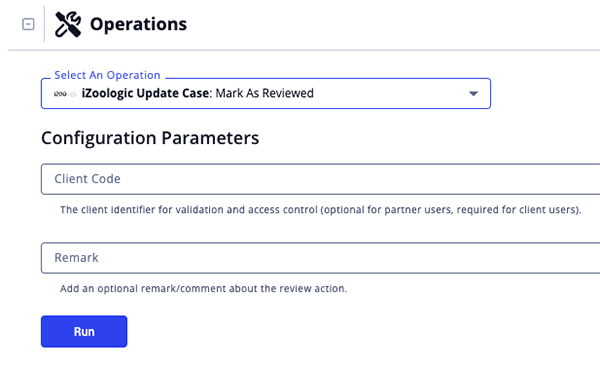
The Mark as Reviewed operation action marks a case as reviewed by updating its review status and logging the action. It supports both incident cases and monitoring cases (Brand Abuse, Domain, Social Media, Mobile App, and Executive monitoring).
POST https://client-api.izoolabs.com/api/ThreatManagement/MarkAsReviewed
Sample Body:
{
  "ids": "INC123456",
  "clientCode": "CLIENT001",
  "remark": "Case reviewed and validated. No further action required."
}
Sample Response:
{
  "success": true,
  "message": "Cases Marked as Reviewed",
  "errorCode": null
}
Run Configuration Options
These configuration options are set after selecting the action to run against an object and are not set from the operation's configuration screen.
The following configuration option is available after selecting the action:
| Run Option | Description |
|---|---|
| Client Code | Enter the client identifier for validation and access control. This is required for client users but optional for partner users. |
| Remark | Add an optional remark/comment about the review action. |
Move Case
The Move Case operation action moves a case to a different status or queue within the iZoologic system.
POST https://client-api.izoolabs.com/api/ThreatManagement/SendCaseMessage?CaseID=CASE123456&Subject=Urgent%20Follow-up&Message=Please%20provide%20status%20update%20on%20this%20phishing%20case&ClientCode=ABC
Sample Body:
{
  "clientCode": "CLIENT001",
  "caseID": "CASE123456",
  "moveToCaseType": 6,
  "comment": "Moving case to incident for further investigation"
}
Sample Response:
{
  "result": {
    "Success": true,
    "Message": "Case moved successfully"
  },
  "success": true,
  "message": null,
  "errorCode": null
}
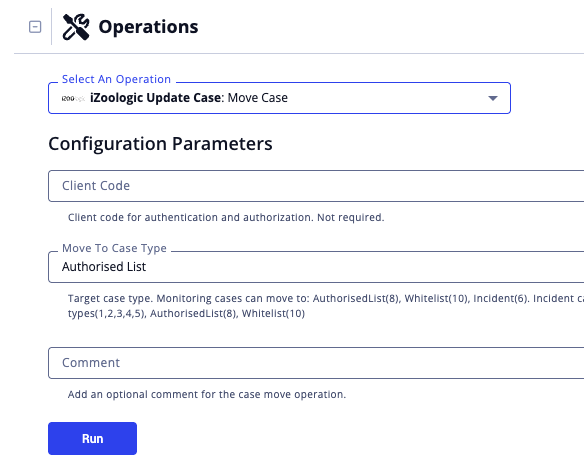
Run Configuration Options
These configuration options are set after selecting the action to run against an object and are not set from the operation's configuration screen.
The following configuration option is available after selecting the action:
| Run Option | Description |
|---|---|
| Client Code | Enter the client code for authentication and authorization. |
| Move to Case Type | Select the Target case type.
Monitoring cases can be moved to:
Incident cases can be moved to:
|
| Comment | Enter an optional comment for the case move operation. |
Known Issues / Limitations
- ThreatQ system egress IP Address may need to be whitelisted with iZoologic - contact iZoologic support for assistance.
Change Log
- Version 1.0.0
- Initial release
PDF Guides
| Document | ThreatQ Version |
|---|---|
| iZoologic Operation Guide v1.0.0 | 5.9.0 or Greater |