Securonix Operation
The web format of this guide reflects the most current release. Guides for older iterations are available in PDF format.
Integration Details
ThreatQuotient provides the following details for this integration:
| Current Integration Version | 1.0.0 |
| Compatible with ThreatQ Versions | >= 5.29.0 |
| Support Tier | ThreatQ Supported |
Introduction
The Securonix Operation enables ThreatQ to enrich platform objects with sighting and activity data sourced from the Securonix SNYPR SIEM. Through its Lookup capability, the operation queries the Securonix Activity Index to retrieve relevant intelligence and correlate observed activity with existing ThreatQ objects.
The integration provides the following action:
- Lookup - enriches ThreatQ objects with intelligence from the Securonix Activity Index.
The integration is compatible with the following object types:
- Assets
- Identities
- Indicators
- Email Address
- File Path
- File Name
- FQDN
- IP Address
- IPv6 Address
- MD5
- SHA-1
- SHA-256
- SHA-384
- SHA-512
- URL
- Username
Prerequisites
The following is required to run the integration:
- A Securonix SNYPR Account along with a valid username and password for the Securonix instance.
Installation
Perform the following steps to install the integration:
The same steps can be used to upgrade the integration to a new version.
- Log into https://marketplace.threatq.com/.
- Locate and download the integration file.
- Navigate to the integrations management page on your ThreatQ instance.
- Click on the Add New Integration button.
- Upload the integration file using one of the following methods:
- Drag and drop the file into the dialog box
- Select Click to Browse to locate the integration file on your local machine
ThreatQ will inform you if the operation already exists on the platform and will require user confirmation before proceeding. ThreatQ will also inform you if the new version of the operation contains changes to the user configuration. The new user configurations will overwrite the existing ones for the operation and will require user confirmation before proceeding.
The operation is now installed and will be displayed in the ThreatQ UI. You will still need to configure and then enable the operation.
Configuration
ThreatQuotient does not issue API keys for third-party vendors. Contact the specific vendor to obtain API keys and other integration-related credentials.
To configure the integration:
- Navigate to your integrations management page in ThreatQ.
- Select the Operation option from the Type dropdown (optional).
- Click on the integration entry to open its details page.
- Enter the following parameters under the Configuration tab:
Parameter Description Securonix Host / IP Enter the Securonix Hostname or IP Address to connect to with integration. Do not include the HTTPorHTTPSprotocol. Example:<tenant>.securonix.net.Username Enter your Securonix username for authentication. Password Enter your Securonix username for authentication. Enable SSL Certificate Verification Enable this parameter if the integration should validate the host-provided SSL certificate.
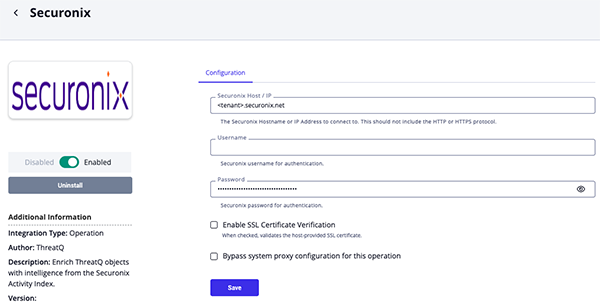
- Review any additional settings, make any changes if needed, and click on Save.
- Click on the toggle switch, located above the Additional Information section, to enable it.
Actions
The operation provides the following action:
| Action | Description | Object Type | Object Subtype |
|---|---|---|---|
| Lookup | Enriches ThreatQ objects with Securonix data | Asset, Indicator, Identity | IP, IPv6, Email, File Path, File Name, FQDN, MD5, SHA-1, SHA-256, SHA-384, SHA-512, URL, Username |
Lookup
The Lookup action queries the Securonix activity index and returns a summary information about the query and a list of detailed context attributes found in the events.
GET https://{host}/Snypr/ws/spotter/index/search
Sample Request Parameters:
{
  "query": "index=\"activity\" and (ipaddress=\"8.8.8.8\" or sourceaddress=\"8.8.8.8\" or destinationaddress=\"8.8.8.8\")",
  "eventtime_from": "02/01/2026 11:46:32",
  "eventtime_to": "02/03/2026 11:46:32",
  "data_labels": "true"
}
Sample Response:
{
  "totalDocuments": 83046,
  "events": [
    {
      "ipaddress": "8.8.8.8",
      "deviceaction": "allow",
      "resourcename": "Palo_H4X",
      "resourcetype": "Palo Alto Next-Generation Firewall",
      "categoryoutcome": "Success",
      "rg_vendor": "Palo Alto Networks",
      "deviceseverity": "Information",
      "deviceeventcategory": "NetworkConnect",
      "categorybehavior": "Connection Request",
      "resourcegroupname": "Palo_H4X",
      "categoryobject": "Network",
      "devicehostname": "H4X-PA",
      "eventtime": "1770023160000"
    },
    {
      "ipaddress": "8.8.8.8",
      "deviceaction": "Network connection detected",
      "resourcename": "COLLECTOR.hax.local",
      "resourcetype": "Microsoft Windows Sysmon",
      "categoryoutcome": "Attempt",
      "rg_vendor": "Microsoft Corporation",
      "deviceseverity": "Information",
      "deviceeventcategory": "Filtering Platform Connection",
      "categorybehavior": "Connection Request",
      "resourcegroupname": "SysmonH4X",
      "categoryobject": "Network",
      "devicehostname": "COLLECTOR.hax.local",
      "eventtime": "1770026460000"
    }
  ]
}
ThreatQuotient provides the following default mapping for this action based on each item with the .events list.
| Provider Data Path | ThreatQ Entity | ThreatQ Object Type or Attribute Key | Examples | Notes |
|---|---|---|---|---|
| categorybehavior | Attribute | Category Behavior | Connection Request | N/A |
| .categoryobject | Attribute | Category Object | Network | N/A |
| .categoryoutcome | Attribute | Category Outcome | Success, Attempt | N/A |
| .deviceaction | Attribute | Device Action | allow, Network connection detected | N/A |
| .deviceseverity | Attribute | Device Severity | N/A | N/A |
| .deviceeventcategory | Attribute | Device Event Category | Filtering Platform Connection | N/A |
| .resourcegroupname | Attribute | Resource Group Name | SysmonH4X | N/A |
| .resourcename | Attribute | Resource Name | COLLECTOR.hax.local | N/A |
| .devicehostname | Attribute | Device Hostname | H4X-PA | N/A |
| .resourcetype | Attribute | Resource Type | Palo Alto Next-Generation Firewall | N/A |
| .rg_functionality | Attribute | Resource Group Functionality | Microsoft Windows | N/A |
| .rg_vendor | Attribute | Resource Group Vendor | Microsoft Corporation | N/A |
Run Configuration Options
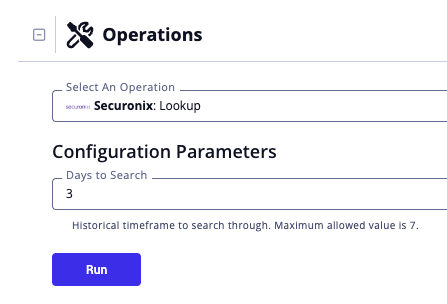
The following configuration option is available after selecting the action:
| Run Option | Description |
|---|---|
| Days to Search | Enter the historical timeframe to search through. The default value is 3 and the maximum allowed value is 7 |
This configuration option is set after selecting the Lookup action to run against an object and is not set from the operation's configuration screen.
Queries
The following queries are used (%s is the placeholder for the object's value). Additionally, the date range is appended to filter the events by their timestamps.
| ThreatQ Object Type | ThreatQ Object Subtype | Securonix Query | ||
|---|---|---|---|---|
| Asset | N/A | ipaddress="%s" | ||
| Identity | N/A | accountname="%s" | ||
| Indicator | Email Address | (emailsender="%s" or emailrecipient="%s") | ||
| Indicator | File Path | (filepath="%s" or oldfilepath="%s") | ||
| Indicator | FQDN | (destinationhostname="%s" or sourcehostname="%s") | ||
| Indicator | IP Address | (ipaddress="%s" or sourceaddress="%s" or destinationaddress="%s") | ||
| Indicator | IPv6 Address | (ipaddress="%s" or sourceaddress="%s" or destinationaddress="%s") | ||
| Indicator | MD5 | (filehash="%s" or oldfilehash="%s") | ||
| Indicator | SHA-1 | (filehash="%s" or oldfilehash="%s") | ||
| Indicator | SHA-256 | (filehash="%s" or oldfilehash="%s") | ||
| Indicator | SHA-384 | (filehash="%s" or oldfilehash="%s") | ||
| Indicator | SHA-512 | (filehash="%s" or oldfilehash="%s") | ||
| Indicator | URL | requesturl=\"%s\" | ||
| Indicator | Username | accountname="%s" |
Change Log
- Version 1.0.0
- Initial release
PDF Guides
| Document | ThreatQ Version |
|---|---|
| Securonix Operation Guide v1.0.0 | 5.29.0 or Greater |