Trellix CM Connector
The web format of this guide reflects the most current release. Guides for older iterations are available in PDF format.
Integration Details
ThreatQuotient provides the following details for this integration:
| Current Integration Version | 3.5.4 |
| Compatible with ThreatQ Versions | >= 4.34.0 |
| Python Version | 3.6 |
| Support Tier | ThreatQ Supported |
Introduction
The Trellix CM connector is designed to attach to a single Trellix CM instance.
The connector performs the following actions:
- Pulls alerts from your Trellix CM instance and uploads the data as indicators and events to ThreatQ.
The events are tagged as Malware type events.
- Uploads indicators from a provided ThreatQ data collection to Trellix CM. You can submit multiple data collections by providing comma-separated lists.
The connector utilizes the following endpoints:
- POST /wsapis/v2.0.0/auth/login - connects to the Trellix CM instance and logs in, getting the required header.
- GET /wsapis/v2.0.0/alerts - collects alerts from Trellix CM from a specific historical period.
- POST /wsapis/v2.0.0/customioc/feed/add - uploads indicators from ThreatQ data collection to Trellix custom IOC file.
- POST /wsapis/v2.0.0/customioc/feed/delete/<list name> - deletes a custom IOC list if it exists in Trellix.
- GET /wsapis/v2.0.0/customioc/feed/download/<list name> - gets the contents of a custom IOC list from Trellix CM.
- POST /wsapis/v2.0.0/auth/logout - logs out the session of the Trellix CM instance.
The connector ingests indicator and event type system objects.
The Trellix CM connector replaces the FireEye CMS connector as of version 3.4.2.
Prerequisites
The followin is required to install and run the connector:
- A Trellix CM account with API access privileges.
Time Zone
The time zone steps are for ThreatQ v5 only. ThreatQ v6 users should skip these steps.
You should ensure all ThreatQ devices are set to the correct time, time zone, and date (UTC is recommended), and using a clock source available to all.
To identify which time zone is closest to your present location, use the timedatectl command with the list-timezones command line option.
For example, enter the following command to list all available time zones in Europe:
Europe/Amsterdam
Europe/Athens
Europe/Belgrade
Europe/Berlin
Enter the following command, as root, to change the time zone to UTC:
Integration Dependencies
The integration must be installed in a python 3.6 environment.
The following is a list of required dependencies for the integration. These dependencies are downloaded and installed during the installation process. If you are an Air Gapped Data Sync (AGDS) user, or run an instance that cannot connect to network services outside of your infrastructure, you will need to download and install these dependencies separately as the integration will not be able to download them during the install process.
Items listed in bold are pinned to a specific version. In these cases, you should download the version specified to ensure proper function of the integration.
| Dependency | Version | Notes |
|---|---|---|
| ipaddress | 1.0.18 | Pinned |
| python-dateutil | 2.6.0 | Pinned |
| threatqsdk | >=1.8.6 | N/A |
| threatqcc | >=1.4.2 | N/A |
Installation
Upgrading Users - Review the Change Log for updates to configuration parameters before updating. If there are changes to the configuration file (new/removed parameters), you must first delete the previous version's configuration file before proceeding with the install steps listed below. Failure to delete the previous configuration file will result in the connector failing.
- Download the connector integration file from the ThreatQ Marketplace.
- Transfer the connector whl file to the
/tmp/directory on your instance. - SSH into your instance.
- Move the connector whl file from its
/tmp/location to the following directory:/opt/tqvenv - Navigate to the custom connector container:
kubectl exec -n threatq -it deployments/custom-connectors -- /bin/bash
- Create your python 3 virtual environment:
python3.6 -m venv /opt/tqvenv/<environment_name>
- Active the new environment:
source /opt/tqvenv/<environment_name>/bin/activate
- Run the pip upgrade command:
pip install --upgrade pip
- Install the required dependencies:
pip install setuptools==59.6.0 threatqsdk threatqcc
- Install the connector:
pip install /opt/tqvenv/tq_conn_trellix_cm-<version>-py3-none-any.whl
- Perform an initial run of the connector:
/opt/tqvenv/<environment_name>/bin/tq-conn-trellix-cm --cron="0 */2 * * *"
The
--cronargument above is used to generate a cron job for the connector. After running the command above, the cronjob will be created under the /etc/cron.d/ directory. This entry will initially be commented out upon creation - see the CRON chapter for more details. - Enter the following parameters when prompted:
Parameter Description ThreatQ Host Leave this field blank as it will be set dynamically. ThreatQ Client ID This is the OAuth id that can be found at Settings Gear → User Management → API details within the user’s details. ThreatQ Username This is the Email Address of the user in the ThreatQ System for integrations. ThreatQ Password The password for the above ThreatQ account. Status This is the default status for objects that are created by this Integration. Example Output
/opt/tqvenv/<environment_name>/bin/tq-conn-trellix-cm --cron="0 */2 * * *"
ThreatQ Host:
ThreatQ Client ID: <ClientID>
ThreatQ Username: <EMAIL ADDRESS>
ThreatQ Password: <PASSWORD>
Status: Review
Connector configured. Set information in UI
You will still need to configure and then enable the connector.
- Navigate to the ThreatQ Marketplace and download the .whl file for the integration.
- Create the following directory:
mkdir /opt/tqvenv/
- Install python 3.6:
sudo yum install -y python36 python36-libs python36-devel python36-pip
- Create a virtual environment:
python3.6 -m venv /opt/tqvenv/<environment_name>
- Activate the virtual environment:
source /opt/tqvenv/<environment_name>/bin/activate
- Run the pip upgrade command:
pip install --upgrade pip
- Install the required dependencies:
pip install threatqsdk threatqcc setuptools==59.6.0
- Transfer the whl file to the
/tmpdirectory on your ThreatQ instance. - Install the connector on your ThreatQ instance:
pip install /tmp/tq_conn_trellix_cm-<version>-py3-none-any.whl
A driver called
tq-conn-trellix-cmwill be installed. After installing, a script stub will appear in/opt/tqvenv/<environment_name>/bin/tq-conn-trellix-cm. - Once the application has been installed, a directory structure must be created for all configuration, logs and files, using the
mkdir -pcommand. Use the commands below to create the required directories:mkdir -p /etc/tq_labs/ mkdir -p /var/log/tq_labs/ - Perform an initial run using the following command:
/opt/tqvenv/<environment_name>/bin/tq-conn-trellix-cm -ll /var/log/tq_labs/ -c /etc/tq_labs/ -v3
- Enter the following parameters when prompted:
Parameter Description ThreatQ Host This is the host of the ThreatQ instance, either the IP Address or Hostname as resolvable by ThreatQ. ThreatQ Client ID This is the OAuth id that can be found at Settings Gear → User Management → API details within the user’s details. ThreatQ Username This is the Email Address of the user in the ThreatQ System for integrations. ThreatQ Password The password for the above ThreatQ account. Status This is the default status for objects that are created by this Integration. Example Output
/opt/tqvenv/<environment_name>/bin/tq-conn-trellix-cm -ll /var/log/tq_labs/ -c /etc/tq_labs/ -v3
ThreatQ Host: <ThreatQ Host IP or Hostname>
ThreatQ Client ID: <ClientID>
ThreatQ Username: <EMAIL ADDRESS>
ThreatQ Password: <PASSWORD>
Status: Review
Connector configured. Set information in UI
You will still need to configure and then enable the connector.
Configuration
ThreatQuotient does not issue API keys for third-party vendors. Contact the specific vendor to obtain API keys and other integration-related credentials.
To configure the integration:
- Navigate to your integrations management page in ThreatQ.
- Select the Labs option from the Category dropdown (optional).
- Click on the integration entry to open its details page.
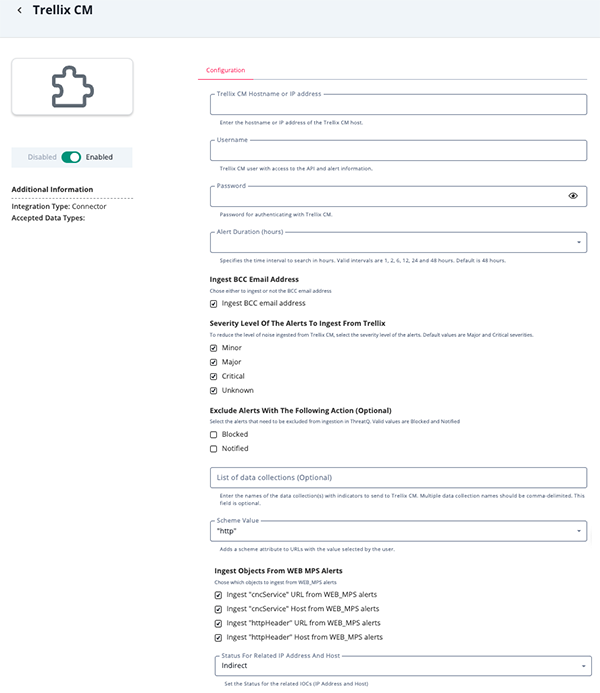
- Enter the following parameters under the Configuration tab:
Parameter Description Trellix CM Hostname or IP address Enter the hostname or IP address of the Trellix CM host. Username The Trellix CM user with access to the API and alert information. Password Your Password for authenticating with Trellix CM. Alert Duration (hours) Specify the time interval to search in hours. Valid intervals are: - 1
- 2
- 6
- 12
- 24
- 48 (default)
Ingest BCC Email Address Enable or disable this option to allow the ingestion of BCC email addresses. Severity Level of the Alerts to Ingest from Trellix CM To reduce the level of noise ingested from Trellix CM, select the severity level of the alerts. Options include: - Minor
- Major (default)
- Critical (default)
- Unknown
Exclude alerts with the following action Select the alerts that need to be excluded from ingestion in ThreatQ. Valid values are Blocked and Notified. List of Data Collections Optional - Enter the names of the data collection(s) with indicators to send to Trellix. Multiple data collection names should be comma-delimited. Scheme Value Defines how ingested URL indicators should be handled. Options are as follows: - No Scheme
- "http"
- "https" (default)
- "hxxp"
Ingest Objects from Web MPS Alerts Chose which objects to ingest from WEB_MPS alerts. Options include: - Ingest "cncService" URL from WEB_MPS alerts
- Ingest "cncService" Host from WEB_MPS alerts
- Ingest "httpHeader" URL from WEB_MPS alerts
- Ingest "httpHeader" Host from WEB_MPS alerts
Status for Related IP Address and Host Set the status for the related IOCs (IP Address and Host). Options include: - Active
- Expired
- Indirect (default)
- Review
- Whitelisted
- Review any additional settings, make any changes if needed, and click on Save.
- Click on the toggle switch, located above the Additional Information section, to enable it.
Usage
Use the following commands to execute the driver:
Ingest Alerts Command
Execute Driver to Sync Data Collections Alerts Command
Command Line Arguments
This connector supports the following custom command line arguments:
| Argument | Description |
|---|---|
-h, --help |
Review all additional options and their descriptions. |
-ll LOGLOCATION, --loglocation LOGLOCATION |
Sets the logging location for the connector. The location should exist and be writable by the current. A special value of 'stdout' means to log to the console (this happens by default). |
-c CONFIG, --config CONFIG |
This is the location of the configuration file for the connector. This location must be readable and writable by the current user. If no config file path is given, the current directory will be used. This file is also where some information from each run of the connector may be put (last run time, private oauth, etc.) |
-v {1,2,3}, --verbosity {1,2,3} |
This is the logging verbosity level where 3 means everything. |
-n, --name |
Optional - Name of the connector (Option used in order to allow users to configure multiple connector instances on the same TQ box). |
-ep, --external-proxy |
This allows you to use the proxy that is specified in the ThreatQ UI. |
-dp, --disable-proxy |
Flag to bypass environment proxy. |
-ds, --disable-ssl |
Adding this flag will disable SSL verification when contacting the 3rd party API. |
-f, --file |
Set the path to a file to parse. If not specified, the integration will use the Trellix API endpoint. |
| --cron | ThreatQ v6 Only - creates a CRON entry for the connector based on a pre-loaded ThreatQ template. See the CRON section for more details. |
Accessing Connector Logs
ThreatQ version 6 aggregates the logs for all custom connectors to its output container. You can access the container's log using the following command:
The connector log directory was created in 10 of the installation process and is identified using the -ll argument flag when executing the driver.
Accessing Connector Configuration
The custom connector configuration file can be found in the following directory: /etc/tq_labs/.
The custom connector configuration file was created in step 10 of the install process and identified using the -c argument flag when executing the driver.
CRON
The addition of the --cron argument in the initial run of connector, performed during the install process, resulted in the creation of a cron job file for the connector in the following directory: /etc/cron.d/. The contents of the file will resemble the following structure:
The {schedule} will be replaced with the cron settings you entered with the --cron flag and the {executable} will be replaced for with the connector's driver command.
You will also see a # at the beginning of the file. This comments out the job. This allows you to configure the custom connector in the ThreatQ UI first. After you have configured the connector in ThreatQ, you can remove the # from the file content's in order to activate the cron job.
To summarize this process:
- Install the connector and perform an initial run using the
--cronargument to create the cron job. - Complete the connector's configuration settings in the ThreatQ UI.
- Access the connector's cron file in the
/etc/cron.d/directory and remove the # from the beginning of the file.
Automatic CRON configuration has been removed from this script. To run this script on a recurring basis, use CRON or some other jobs scheduler. The argument in the CRON script must specify the config and log locations.
Add an entry to your Linux crontab to execute the connector at a recurring interval. Depending on how quickly you need updates, this can be run multiple times a day (no more than once an hour) or a few times a week.
In the example below, the command will execute the connector every two hours.
- Log into your ThreatQ host via a CLI terminal session.
- Enter the following command:
crontab -e
This will enable the editing of the crontab, using vi. Depending on how often you wish the cronjob to run, you will need to adjust the time to suit the environment.
- Enter the commands below:
Every 2 Hours Example
0 */2 * * * /opt/tqvenv/<environment_name>/bin/tq-conn-trellix-cm -c /etc/tq_labs/ -ll /var/log/tq_labs/ -v3 - Save and exit CRON.
ThreatQ Mapping
Login
The Login endpoint connects to the Trellix CM instance and logs in to retrieve the required header.
POST /wsapis/v2.0.0/auth/login
Sample Response:
N/A
Empty body of the response. The header contains the X-FeApi-Token which is used for further API requests.
Search for Alerts
The Search for Alerts endpoint collects alerts from Trellix CM from a specific historical period.
GET /wsapis/v2.0.0/alerts
Sample Response:
{
  "alert": [
    {
      "explanation": {
        "malwareDetected": {
          "malware": [
            {
              "md5Sum": "fe4d8f227520e2468dd1019496ef0604",
              "sha256": "b71e3012e93f11a7b0b179ea54eeb0e787d02acc48705833e414a5e57a6a2032",
              "name": "Malware.Binary.FEC2",
              "originalInfectionId": 3181,
              "originalInfectionType": "MALWARE_OBJECT",
              "originalInfectionUrl": "https://10.11.113.143/botnets/events_for_bot?ma_id=3181"
            },
          ]
        },
        "osChanges": [
          {
            "application": {
              "app-name": "Windows Explorer"
            },
            "os": {...},
            "file_informational": [...],
            "uac": [...],
            "end-of-report": "",
            "process_informational": [...],
            "os_monitor": {
              "date": "Sep 19 2018",
              "build": 795854,
              "time": "12:59:48",
              "version": "17R1.7"
            },
            "malicious-alert": [
              {
                "classtype": "static_log",
                "display-msg": "Static Analysis"
              },
              {
                "classtype": "Static-Analysis",
                "display-msg": "Static Analysis"
              },
              {
                "classtype": "static_log",
                "display-msg": "Static Analysis"
              },
              {
                "classtype": "Static-Analysis",
                "display-msg": "Static Analysis"
              },
              {
                "classtype": "sa_only",
                "display-msg": "Heuristic"
              }
            ],
            "analysis": {
              "mode": "malware",
              "product": "MPS",
              "ftype": "exe",
              "version": 1.3977
            }
          },
        ]
      },
      "src": {
        "ip": "56.204.181.67",
        "mac": "00:20:18:11:ff:45",
        "port": 0
      },
      "alertUrl": "https://qa-cm7500-4-9-20/event_stream/events_for_bot?ma_id=12345",
      "action": "notified",
      "occurred": "2018-10-18 16:46:41 +0000",
      "dst": {
        "mac": "02:14:17:da:c9:2f",
        "port": 0,
        "ip": "249.207.161.251"
      },
      "applianceId": "000BABCD66F2",
      "id": 12345,
      "rootInfection": 3181,
      "sensorIp": "10.11.113.155",
      "name": "MALWARE_OBJECT",
      "severity": "MAJR",
      "uuid": "c9391258-1a79-4b54-be8e-144ddb5f118f",
      "ack": "yes",
      "product": "WEB_MPS",
      "sensor": "cms-nx2500-3",
      "vlan": 0,
      "malicious": "yes"
    }
  ],
  "appliance": "CMS",
  "version": "CMS (CMS) 8.4.0.805144",
  "msg": "normal",
  "alertsCount": 1
}
Upload Indicators
The Upload Indicators endpoint upload indicators from ThreatQ data collection to a Trellix custom IOC file.
POST /wsapis/v2.0.0/customioc/feed/add
Sample Response:
N/A
Delete Custom IOC List
The Delete Custom IOC List endpoint deletes a custom IOC list in Trellix if it exists.
POST /wsapis/v2.0.0/customioc/feed/delete/<list name>
Sample Response:
N/A
Get Contents for Custom IOC List
The Get Contents for Custom IOC List endpoint retrieves the contents of a custom IOC list from Trellix CM.
GET /wsapis/v2.0.0/customioc/feed/download/<list name>
Sample Response:
N/A
Log Out
The Log Out endpojng logs out of the session with your Trellix instance.
POST /wsapis/v2.0.0/auth/logout
Sample Response:
N/A
The API returns code 200 with an empty body if the log out was successful.
Average Feed Run
Object counts and Feed runtime are supplied as generalities only - objects returned by a provider can differ based on credential configurations and Feed runtime may vary based on system resources and load.
| Metric | Result |
|---|---|
| Run Time | 3 |
| Export Indicators | 10,000 |
| Add Indicator Attributes | 160 |
| Create ThreatQ Events | 10 |
| Create Indicators | 50 |
Known Issues / Limitations
The Trellix CM instances uses a self-signed certificate by default. Use the -ds flag, listed in the Command Line Arguments section in the Usage chapter to disable SSL verification.
Change Log
- Version 3.5.4 rev-a
- Guide Update - added ThreatQ v6 installation and usage information to the user guide.
- Version 3.5.4
- Updated the Ingest Objects from Web MPS Alerts configuration parameter. Available options are now:
- Ingest "cncService" URL from WEB_MPS alerts
- Ingest "cncService" Host from WEB_MPS alerts
- Ingest "httpHeader" URL from WEB_MPS alerts
- Ingest "httpHeader" Host from WEB_MPS alerts
- Added a new configuration parameter, Status for Related IP Address and Host, that provides the ability to select a status for related IP Address and Host indicators ingested from WEB_Alerts.
- Updated the Ingest Objects from Web MPS Alerts configuration parameter. Available options are now:
- Version 3.5.3
- Resolved an issue with the WEB_ALERT did not ingest the correct objects.
- Added a new configuration parameter: Ingest Objects from Web MPS Alerts. This allows you to select which objects to ingest for WEB_ALERTS.
- Updated the Behavior for URL Indicators parameter field. The field is now called Scheme and offers an additional option: hxxp.
- Version 3.5.2
- Resolved a pagination bug.
- Version 3.5.1
- Added a new configuration option, Ingest BCC Email Address, that allows you to control the ingestion of bcc emails.
- Objects containing smtpprotoheader.ehdr are no longer ingested by the connector.
- Version 3.5.0
- Added a check for double-run protection.
- The connector will now ingest malicious URLs as indicators.
- Added new configuration option, Behavior for URL Indicators, that allows you to define how ingested URL indicators are handled.
- Added new Known Issue / Limitation.
- Updated ThreatQSDK and ThreatQCC dependency versions.
- Version 3.4.2
- Resolved an issue that occurred with indicator synchronization with Trellix CM.
- Updated the connector name from FireEye CMS to Trellix CM to reflect provider naming.
- Version 3.4.1
- The Exclude alerts with the following action UI configuration is now optional.
- Version 3.4.0
- Modified the UI configuration page for the connector.
- Added the ability to filter alerts based on severity (Minor, Major, Critical, Unknown).
- Added the ability to exclude alerts based on the action taken on the alert (Blocked or Notified).
- Version 3.3.1
- Updated Parameter naming - Saved Search is now known as Data Collection.
- Version 3.3.0
- Added Python 3 support.
- Updated search system to use Data Collections / Saved Searches.
- Version 3.2.1
- Added the ability to retrieve and upload data from FireEye CMS.
- Version 2.0.0
- Minor documentation updates/enhancements.
- Version 1.1.0
- Minor documentation updates/enhancements.
- Version 1.0.0
- Initial Release
PDF Guides
| Document | ThreatQ Version |
|---|---|
| Trellix CM Connector Guide v3.5.4 | 4.34 or Greater |
| Trellix CM Connector Guide v3.5.3 | 4.34 or Greater |
| Trellix CM Connector Guide v3.5.2 | 4.34 or Greater |
| Trellix CM Connector Guide v3.5.1 | 4.34 or Greater |
| Trellix CM Connector Guide v3.5.0 | 4.34 or Greater |
| Trellix CM Connector Guide v3.4.2 | 4.34 or Greater |
| FireEye CMS Connector Guide v3.4.1 | 4.34.0 or Greater |
| FireEye CMS Connector Guide v3.4.0 | 4.34.0 or Greater |
| FireEye CMS Connector Guide v3.3.1 | 3.6.0 or Greater |
| FireEye CMS Connector Guide v3.3.0 | 3.6.0 or Greater |
| FireEye CMS Connector Guide v2.0.0 | 3.6.0 or Greater |
| FireEye CMS Connector Guide v1.1.0 | 3.6.0 or Greater |
| FireEye CMS Connector Guide v1.0.0 | 3.6.0 or Greater |