Wazuh Action
The web format of this guide reflects the most current release. Guides for older iterations are available in PDF format.
Integration Details
ThreatQuotient provides the following details for this integration:
| Current Integration Version | 1.0.0 |
| Compatible with ThreatQ Versions | >= 6.3.0 |
| ThreatQ TQO License Required | Yes |
| Support Tier | ThreatQ Supported |
Introduction
The Wazuh Action enables organizations to export ThreatQ indicators to Wazuh by transforming a configured ThreatQ export into type-specific CDB lists. The action parses indicator values by IoC type and submits them to Wazuh as CDB lists, either creating new lists or overwriting existing lists with the same name to ensure updated intelligence is consistently applied.
The integration provides the following action:
- Wazuh Submit CDB Lists - exports ThreatQ indicator values to Wazuh as type-specific CDB lists for use in detection and alerting workflows.
The integration is compatible with the following indicator types:
- FQDN
- IP Address
- IPv6 Address
- MD5
- SHA-1
- SHA-256
- URL
This action is intended for use with ThreatQ TDR Orchestrator (TQO). An active TQO license is required for this feature.
Prerequisites
- An active ThreatQ TDR Orchestrator (TQO) license.
- A data collection and ThreatQ export containing at least one of the following indicator types:
- FQDN
- IP Address
- IPv6 Address
- MD5
- SHA-1
- SHA-256
- URL
- A ThreatQ Export URL with the limit and ambersand removed.
- Your Wazuh Hostname Your Wazuh API Port Your Wazuh Username and Password.
This account must be assigned a role that includes the
lists:updatepermission.
ThreatQ Export Configuration
This integration uses ThreatQ exports to format and serve the data. Wazuh expects CDB list data in the format of a key:value pair such as <IoC_value>:<context_value>. The value after the colon can be blank if not needed, or it can be customized to whatever you would like. For example, maybe a specific indicator attribute value or the indicator score.
The output format template requires that the indicator type and \<indicator value>:\<attribute value> be in a CSV format so that the action can parse the different IoC types into different lists.
The following is an example export configuration:
| Parameter | Details |
|---|---|
| Type of Information you would like to export | Indicators |
| Output Type | Text/Plain |
| Special Parameters | indicator.deleted=N&indicator.type=IP Address&indicator.type=IPv6 Address&indicator.type=FQDN&indicator.type=URL&indicator.type=MD5&indicator.type=SHA-1&indicator.type=SHA-256 |
| Output Format Template | Basic Example:{foreach $data as $indicator}Advanced Example: {foreach $data as $indicator}
The advanced example adds the value of the "Confidence" attribute, i.e 1.1.1.1:5 (Any IoC without this attribute will have no attribute value attached, i.e. 1.1.1.1:). You can adjust the attribute value shown by changing "Confidence" to whichever attribute key you would like to use. Or you can change the secondary value being sent to Wazuh from an attribute to anything else, such as the score in ThreatQ. |
Export URL Format
When adding the export URL to the action configuration, make sure that you remove the "limit" parameter and value, as well as any extra ampersands.
Default URL: https://\<HOST>/api/export/73a0e1c5da67ef34080ee028f82f23ee/?limit=10&token=\<TOKEN>
The limit portion of the URL, limit=10, as well as the ampersand, must be removed before entering the URL in the action's configuration. The URL should resemble the following after these changes:
https://\<HOST>/api/export/73a0e1c5da67ef34080ee028f82f23ee/?token=\<TOKEN>.
This will ensure that the full set of data is processed
More information about configuring exports can be found on the ThreatQ HelpCenter: https://helpcenter.threatq.com/ThreatQ_Platform/Exports/Exports.htm
Workflow Configurations
The following should be followed when deploying the action to individual workflows.
- You should enable Allow data to be reprocessed and make sure to set the After X Days to
0(under Run Schedule section). - Since this workflow technically looks at 1 object per run, it may eventually run out of objects in the data collection to process, and then it will not run. This option allows the system to process the same data again so that it will not run out of objects in the data collection.
Installation
Perform the following steps to install the integration:
The same steps can be used to upgrade the integration to a new version.
- Log into https://marketplace.threatq.com/.
- Locate and download the action zip file.
- Navigate to the integrations management page on your ThreatQ instance.
- Click on the Add New Integration button.
- Upload the action zip file using one of the following methods:
- Drag and drop the zip file into the dialog box
- Select Click to Browse to locate the zip file on your local machine
ThreatQ will inform you if the action already exists on the platform and will require user confirmation before proceeding. ThreatQ will also inform you if the new version of the action contains changes to the user configuration. The new user configurations will overwrite the existing ones for the action and will require user confirmation before proceeding.
You will still need to configure the action.
Configuration
ThreatQuotient does not issue API keys for third-party vendors. Contact the specific vendor to obtain API keys and other integration-related credentials.
To configure the integration:
- Navigate to your integrations management page in ThreatQ.
- Select the Actions option from the Category dropdown (optional).
- Click on the action entry to open its details page.
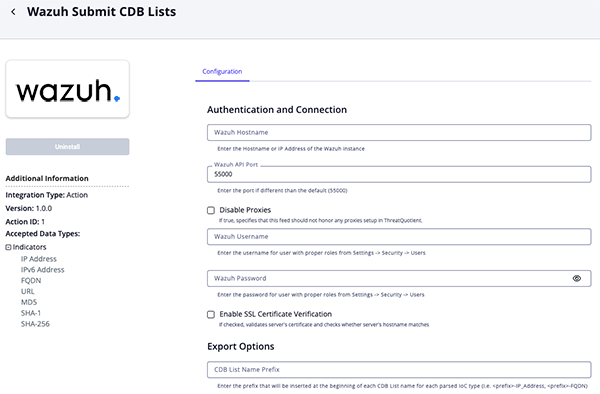
- Enter the following parameters under the Configuration tab:
The configurations set on this page will be used as the default settings when inserting this action into a new workflow. Updating the configurations on this page will not update any instances of this action that have already been deployed to a workflow. In that scenario, you must update the action’s configurations within the workflow itself.
Parameter Description Authentication and Connection Wazuh Hostname Enter the Hostname or IP Address of the Wazuh instance. Wazuh API Port Enter the Wazhuh port. The default value is 55000.Disable Proxies Enable this parameter if the action should not honor proxies set in the ThreatQ UI. Wazuh Username Enter your Wazuh username. This account should have the required permissions. Wazuh Password Enter your Wazhun password associated with the username above. Enable SSL Certificate Verification Enable this parameter if the feed should validate the host-provided SSL certificate. Export Options CDB List Name Prefix Enter the prefix that will be inserted at the beginning of each CDB List name for each parsed IoC type.
Example:\<prefix>-IP_Address, \<prefix>-FQDNThreatQ Export URL Enter the ThreatQ export URL used by the action to fetch indicators for Wazuh CDB list generation. Remove the limit portion and ampersand from export URL when adding it to this parameter field.
See the Export URL Format section for more details.Objects Per Run Keep this parameter set to 1as action is not processing objects from the Threat Library.
Actions
The following action is available:
| Action | Description | Object Type | Object Subtype |
|---|---|---|---|
| Wazuh Submit CDB Lists | Submits IoCs to Wazuh in the format of CDB Lists | Indicators | IP Address, IPv6 Address, FQDN, URL, MD5, SHA-1, SHA-256; Other indicator types may be exported but will only be effective if corresponding Wazuh decoders and rules are configured. |
Wazuh Submit CDB Lists
The Wazuh Submit CDB Lists action submits IoCs to Wazuh in the format of CDB Lists.
Export Request
GET https://{host}/api/export/73a0e1c5da68f82f23ee/?token={token}
Sample Response:
IP Address,8.8.8.8:
FQDN,google.com:
FQDN,test.com:Low
FQDN,tester.net:Medium
IP Address,1.2.3.4:High
MD5,3ebfeb1938d1f3749a72fd9cb9e84c4f:
SHA-1,9fda8ccc96b7e8ea5c25d86cbca6a0754f7f7c59:Low
URL,testing.org/tester:Medium
FQDN,testing.org:
Wazuh API Request
The export is parsed and IoCs are split into different lists based on their type. Each different type is sent to Wazuh in a separate request:
PUT https://{wazuh_host}:{wazuh_port}/lists/files/{list_prefix}_<PARSED IOC TYPE>?overwrite=true
IP Addresses
PUT https://{wazuh_host}:{wazuh_port}/lists/files/test_ip_address?overwrite=true
Sample Body:
8.8.8.8:
1.2.3.4:High
Sample Request:
{
  "data": {
    "affected_items": [
      "etc/lists/test_ip_address"
    ],
    "total_affected_items": 1,
    "total_failed_items": 0,
    "failed_items": []
  },
  "message": "CDB list file uploaded successfully",
  "error": 0
}
FQDNs
PUT https://{wazuh_host}:{wazuh_port}/lists/files/test_fqdn?overwrite=true
Sample Body:
google.com:
test.com:Low
tester.net:Medium
testing.org:
Sample Response:
{
  "data": {
    "affected_items": [
      "etc/lists/test_fqdn"
    ],
    "total_affected_items": 1,
    "total_failed_items": 0,
    "failed_items": []
  },
  "message": "CDB list file uploaded successfully",
  "error": 0
}
Enriched Data
Object counts and action runtime are supplied as generalities only - objects returned by a provider can differ based on credential configurations and action runtime may vary based on system resources and load.
| Metric | Result |
|---|---|
| Run Time | 1 minute |
| Indicators | 110 |
Use Case Example
- A user creates a ThreatQ export containing curated Indicators of Compromise (IOCs), such as:
- 150 IP addresses
- 50 domain names
- 25 SHA-256 file hashes
- The user executes the ThreatQ -> Wazuh IOC action against this export.
- The action performs the following:
- Filters indicators based on the configured indicator types.
- Formats the indicator values into Wazuh-compatible CDB lists.
- The action uploads the generated CDB list to the Wazuh Manager using the Wazuh API.
- Wazuh updates the target list file and uses it in active rules to generate alerts when matching telemetry is observed on monitored systems.
Known Issues / Limitations
- There may be a limit currently configured within Wazuh for how large of a file can be sent via the API. This integration breaks up the data by splitting it into different CDB lists based on indicator type. However, if you still have a file too large, then the configuration within Wazuh can be updated. More information on updating the
max_upload_sizeconfiguration can be found in the Wazuh documentation here: https://wazuh-documentation-49-master.readthedocs.io/en/latest/user-manual/api/configuration.html#max-upload-size - Wazuh CDB lists accept arbitrary string values; however, only indicators that correspond to fields present in Wazuh logs and referenced by Wazuh rules will generate alerts.
- The action is intended for use with indicator types such as IP addresses, domains, URLs, and file hashes. Other indicator types may be exported but will only be effective if corresponding Wazuh decoders and rules are configured. Users are responsible for ensuring appropriate rules exist for the indicator types being exported.
Change Log
- Version 1.0.0
- Initial release
PDF Guides
| Document | ThreatQ Version |
|---|---|
| Wazuh Action Guide v1.0.0 | 6.3.0 or Greater |